How to Enrich a Professional Network Export with Thousands of Verified Emails
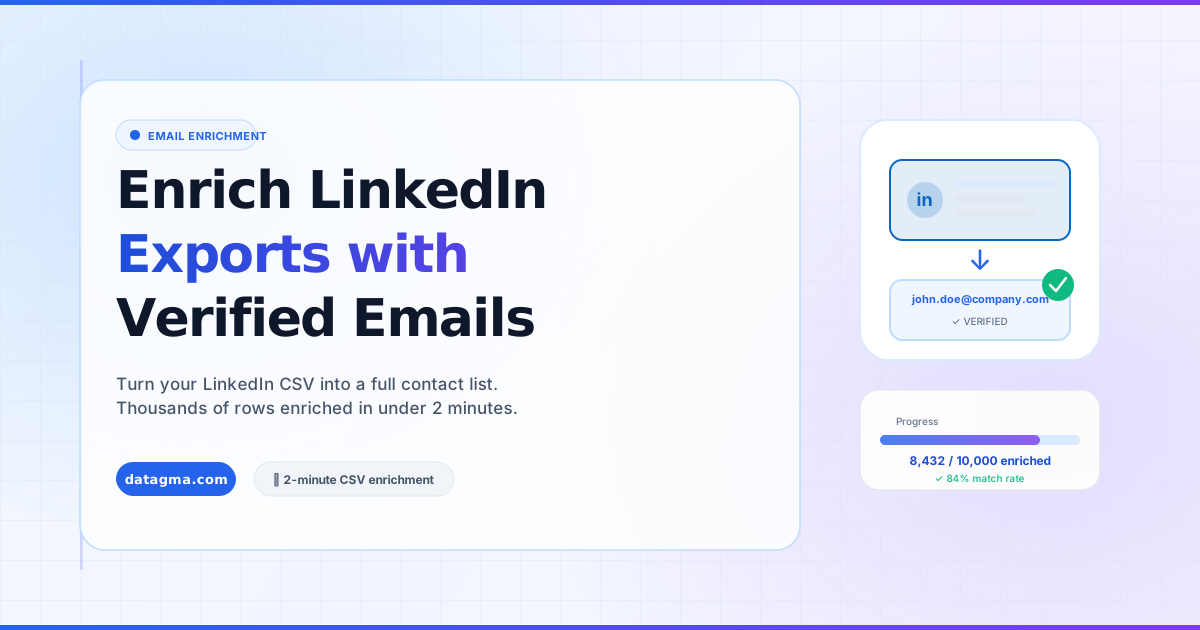
Already have an export of professional profiles from Evaboot, Phantombuster, or Captain Data? Here's how to add verified work email addresses to your entire file with Datagma, in under 2 minutes.
On this page
Introduction
You have an export of professional profiles from a tool like Evaboot, Captain Data, Phantombuster, TexAu, or something similar. You now have a CSV with names, job titles, company names, and professional profile URLs.
The missing piece: verified work email addresses.
Going profile by profile to find emails would take days. With Datagma’s CSV Enrichment, you can enrich your entire file in under 2 minutes, no matter if it contains 100 or 10,000 rows.
What You Need to Start
Your input file should contain at least one of the following columns:
- professional profile URL (most accurate)
- Full name + company name (fallback matching)
Additional columns (job title, location, company domain) improve match accuracy but are not required.
Step-by-Step: Enrich Your Professional Network Export with Datagma
Step 1: Log into Datagma
Go to app.datagma.com and sign in (or create a free account).
Step 2: Go to File Upload
Navigate to File Upload in the left sidebar.
Step 3: Upload Your CSV
Drag and drop your exported file, or click to browse. Supported formats: CSV, Excel (.xlsx).
Datagma will auto-detect your columns and ask you to confirm:
- Which column contains the professional profile URL
- (Optional) Which column contains the full name
- (Optional) Which column contains the company name
Step 4: Select What to Enrich
Choose what data to add:
- ✅ Verified email addresses (verified via NeverBounce)
- ✅ Mobile phone numbers (optional add-on)
- ✅ Company data, funding, headcount, technologies, traffic
Step 5: Start the Enrichment
Click Start Enrichment. Processing time depends on file size:
- 100 rows: ~10 seconds
- 1,000 rows: ~60 seconds
- 10,000 rows: ~5 minutes
Step 6: Download Your Enriched File
Once complete, download your file. Datagma adds new columns to your existing data:
datagma_email, verified work email addressdatagma_email_status, deliverability status (valid / risky / invalid)datagma_phone, verified mobile number (if found)datagma_phone_confidence, confidence score (0–100)
What to Do with Your Enriched File
Import to Your CRM
Upload directly to HubSpot, Pipedrive, Salesforce, or any CRM that accepts CSV imports. Use the email column as the unique identifier to avoid duplicates.
Sequence in Your Outreach Tool
Import to Lemlist, Instantly, Apollo Sequences, Salesloft, or any email outreach platform. Filter by datagma_email_status = valid before sending to protect your sender reputation.
Build a Custom Ad Audience
Upload the enriched emails to professional network matched audiences, Google Customer Match, or Meta Custom Audiences for targeted paid campaigns to your exact prospect list.
Enrich Your Phone Dialing Tool
If your SDR team uses a phone dialer (Aircall, Salesloft Dialer, RingDNA), add the datagma_phone column to their call list. Mobile numbers skip gatekeepers entirely.
Tips for Maximum Match Rate
- Use professional profile URLs : matching by URL gives 95%+ accuracy; name + company has ~85% accuracy
- Clean your list first : remove profiles with no company association (personal/creator accounts)
- Use the full Sales Navigator URL : Sales Navigator profiles match as well as regular professional profile URLs
- Segment before enriching : run your ICP filter (job title, company size, geography) before uploading to avoid wasting credits on non-target profiles
Credits and Pricing
Credits are consumed only for:
- Successfully delivered valid email addresses
- Successfully delivered mobile phone numbers
If Datagma doesn’t find an email or phone, you are not charged for that row. Credits roll over month to month on all plans (starting at $39/month).
Conclusion
Stop visiting professional profiles one by one. With Datagma’s CSV Enrichment, you can take any professional network export and add verified, deliverable email addresses (and mobile phone numbers) in the time it takes to make a cup of coffee.