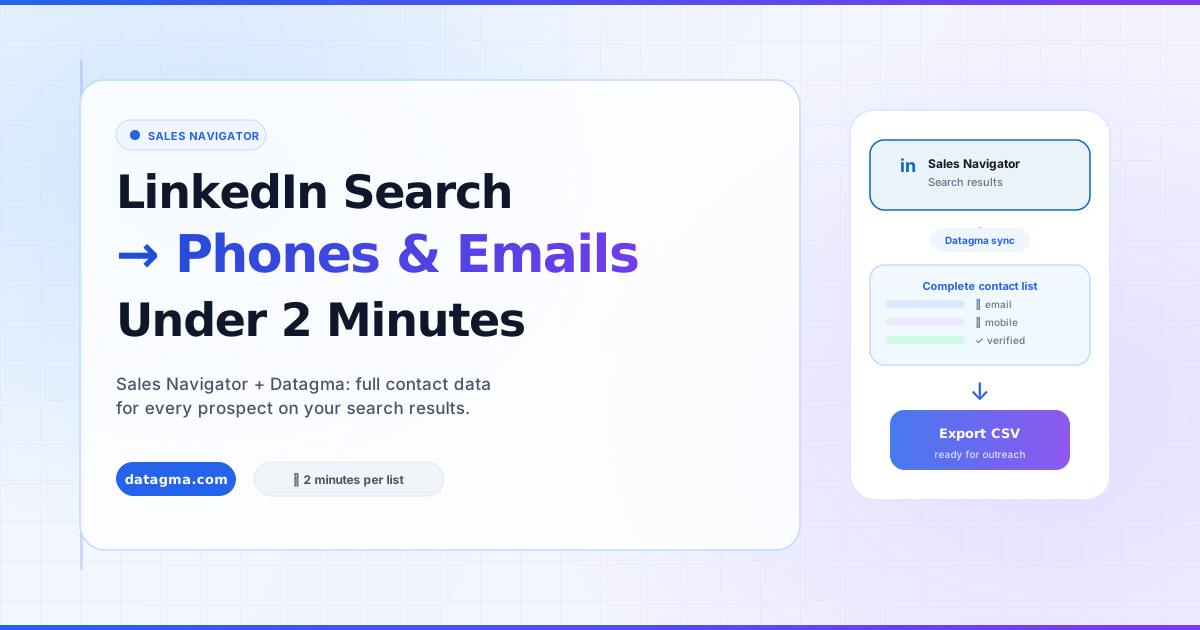
Transform a LinkedIn Search into a List of Phones and Emails in Under 2 Minutes
You have LinkedIn Sales Navigator. Here's how to turn any search into a complete list of verified mobile phone numbers and email addresses — in less than 2 minutes with Datagma.
On this page
Introduction
You have LinkedIn Sales Navigator, and you want to get the mobile phone number and verified email address for each person on your search result.
With Datagma, you can do it in less than 2 minutes. Here’s exactly how.
What You’ll Need
- LinkedIn Sales Navigator account (any tier)
- Datagma Chrome Extension (free to install)
- Datagma account (free trial available)
Step 1: Run Your Search in Sales Navigator
Open LinkedIn Sales Navigator and apply your filters:
- Geography
- Job title / seniority
- Company size and industry
- Recent job changes (highly recommended — see below)
Refine until your search returns a focused, ICP-qualified audience. Sales Navigator typically shows up to 2,500 results per search.
Step 2: Export to CSV with the Datagma Extension
Click the Datagma Chrome Extension icon while viewing your Sales Navigator search results page.
Select Export to CSV. The extension will:
- Scroll through your search results automatically
- Capture each profile’s name, job title, company, location, and LinkedIn URL
- Package everything into a downloadable CSV or Excel file
No manual copy-paste. No cookie injection. No coding.
Export speed: up to 2,500 profiles in under 60 seconds.
Step 3: Upload to Datagma File Upload
Log into app.datagma.com and go to File Upload.
Upload your CSV. Map the LinkedIn URL column (Datagma auto-detects it in most cases).
Select your enrichment options:
- ✅ Verified email addresses
- ✅ Mobile phone numbers
Click Start Enrichment.
Step 4: Download Your Enriched File
Within 60–90 seconds (for a 100-row file), your enriched CSV is ready.
Each row now includes:
datagma_email— verified, deliverable work emaildatagma_phone— verified mobile number (when found)- Company data fields (optional)
Download and import directly into your CRM or outreach sequence.
Total Time: Under 2 Minutes
| Step | Time |
|---|---|
| Sales Navigator search | Already done |
| Export to CSV (Datagma extension) | ~30–60 seconds |
| File Upload enrichment | ~60–90 seconds |
| Total | ~2 minutes |
Why This Workflow Works
Mobile Numbers, Not Switchboards
Datagma returns mobile phone numbers only — not HQ numbers or switchboards. Your SDRs reach the right person directly, not a gatekeeper.
Verified Emails, Not Guessed
Every email is validated via NeverBounce before delivery. You get a datagma_email_status field — filter by valid before importing to your outreach tool to keep bounce rates under 2%.
Credits Only on Finds
You are only charged when Datagma successfully returns a valid email or mobile phone. No result = no charge.
Rollover Credits
Unused credits roll over every month. No pressure to use everything before month-end.
Pro Tips
Target recent job changers: In Sales Navigator, filter by “Changed jobs in the last 90 days.” These individuals are most receptive to outreach and most likely to be evaluating new tools and vendors.
Enrich in batches: If your search has 2,500 results, export in batches of 500–1,000 and prioritize enrichment for your most qualified segments first.
Combine with HubSpot sync: Push your enriched file directly into HubSpot using Datagma’s native integration. New contacts are automatically enriched with company data in addition to the manual enrichment from your CSV.
Start Now
- Install the Datagma Chrome Extension
- Run a Sales Navigator search
- Export → Upload → Download → Outreach
No contract. No setup. First 100 credits free.